My exploration of using a mouse with an iPad got me thinking: since I log into my Raspberry Pi remotely using SSH and the app Termius, could I also run a remote desktop session on my iPad too?


My exploration of using a mouse with an iPad got me thinking: since I log into my Raspberry Pi remotely using SSH and the app Termius, could I also run a remote desktop session on my iPad too?
You don’t need a mouse when you’re using an iPad, right? That’s Apple’s view, but it’s not mine. If you use an iPad as a small, very portable laptop — maybe you have the iPad’s Smart Keyboard add-on — then you don’t necessarily want to be moving your hand up to the screen every time you want to point and click.

I’ve created a page containing simple sets of instructions for some key — and not so widely used — Raspberry Pi setup tasks. The goal is to have a single source that I (and anyone else) can check when they need to look up what they should do to perform a specific action: setting up Node.js, for example, or using Dropbox.
You can find the Knowledgebase here.
The Raspberry Pi is notoriously tough on micro SD cards, which were never intended to be used as primary computer storage.
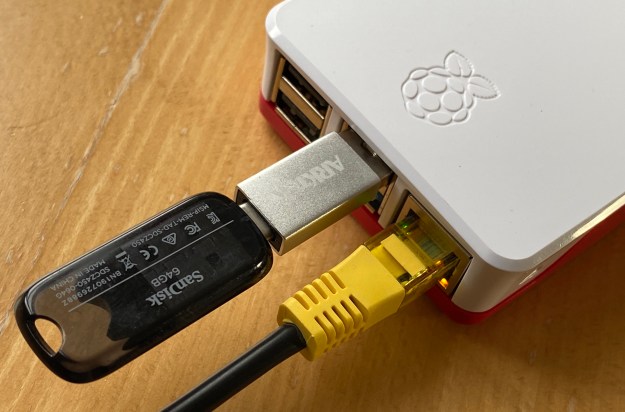
The Pi 4’s USB 3.0 bus presents a high-speed alternative to the SD card… almost. Unfortunately, you can’t yet boot the Pi 4 off a USB 3.0-connected drive (as you could with the Pi 3) but you can at least use USB for your primary storage and retain the Pi’s micro SD card solely for boot duties. This minimizes the risk to this fragile medium.
In the previous post, I showed how Hugo, a static website generator, can be used to build pages from structured data. This time I’m going to show how it can be used to use date information to flag recent site updates.
In this second look at building a website using Hugo, a static site generator, I’m going to explore how to assemble pages from structured data rather than written content.
One use-case for this is a release notes page in a site devoted to a software applications. Case in point: I wrote an app called Squinter which is a macOS tool for developing apps on the Electric Imp Platform. In addition to a page describing the software, I have a separate page which present the app’s release notes. Each note is prefixed with a lozenge indicating whether the note refers to a new feature, an enhancement to an existing feature, or is a bug fix.
After basing my software-oriented website on a hand-assembled set of pages, I recently decided it was time to introduce some automation. Suddenly there were too many pages that needed to be updated every time I released a new version of one of my apps. Additionally, I was writing more apps and utilities, so this process could only ever become more onerous if I continued with a manual set-up.
I’ve just released version 2.2.0 of pdfmaker. You can view the source code here, and download an installer package here.
You can now convert a PDF to a set of images.
For a more detailed post about pdfmaker, click here.
Update My PreviewMarkdown app, which provides Markdown file previews and icon thumbnails in Catalins, is now available from the Mac App Store.
Providing content-based icon thumbnails in macOS Catalina follows the same pattern as generating file previews: QuickLook runs code from an app extension and calls a function within that code to draw the image that will be placed on the icon.


