
Download the utility and read the release notes for this handy macOS image-to-pdf converter here.
Tag Archives: command line
Spruce up the Nano text editor with syntax colouring and more
I use the Nano text editor for command line work. The version installed by Apple (2.0.6) is well behind the curve; use Brew to supersede it with the latest version (5.x at the time of editing).

Give macOS’ Terminal a better ‘ls’
Anyone who uses Terminal will run the ls command to get a listing of files and directories. It’s built in to macOS’ BSD Unix foundation layer. It has one key limitation for me: it has no option to list directories before listing files. Read on to learn how to deal with this issue.

Using the Z shell on the Mac and Pi
When Apple released MacOS Catalina, it decided to switch the default command line shell from the Bourne Again Shell, aka bash, to the Z Shell, aka zsh. One reason for this was that Apple installs a rather old version of bash, 3.3.57, to allow it to include the software under a licence it’s happy with. This isn’t a problem that affects zsh, so Apple can bundle a much more recent release.
That was no problem for me, either, because I long ago used Homebrew to install an up-to-date version of bash, 5.0.17, and have been happily using in preference to the Apple one. To do so yourself, run brew install bash and then go to System Preferences > Users & Groups. Unlock if you need to then right-click on your name in the left-hand column and select Advanced Options…. Now highlight the Login shell: field and set the path to your preferred shell, in this case /usr/local/bin/bash. Afterwards, you can enter echo $SHELL to confirm the change.
How to remove a Pi’s login message
I access my Pi remotely using SSH. While trying out the zsh shell as an alternative to bash, I wondered if I could get rid of all the bumf that’s displayed as soon as I’ve logged in. I want to see the command line prompt and not much else. A little research led me to the following.
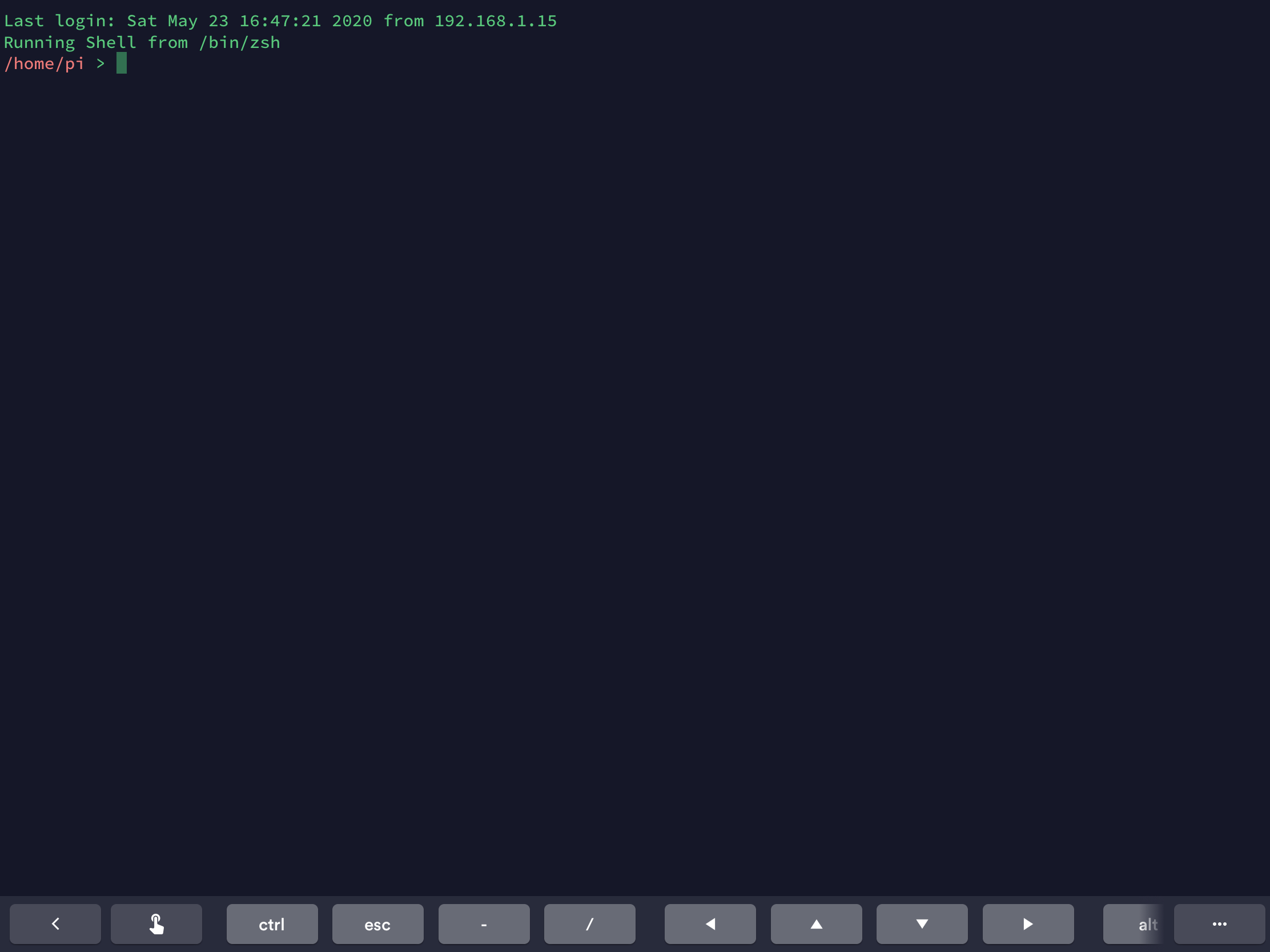
.zshrc fileRaspberry Pi Knowledgebase added
I’ve created a page containing simple sets of instructions for some key — and not so widely used — Raspberry Pi setup tasks. The goal is to have a single source that I (and anyone else) can check when they need to look up what they should do to perform a specific action: setting up Node.js, for example, or using Dropbox.
You can find the Knowledgebase here.
pdfmaker 2.0.0 released
I’ve just released version 2.2.0 of pdfmaker. You can view the source code here, and download an installer package here.
You can now convert a PDF to a set of images.
For a more detailed post about pdfmaker, click here.
pdfmaker 1.1.0 released
I’ve just released version 1.1.0 of pdfmaker. You can view the source code here, and download an installer package here.
You can now select a single source file, not just a folder of files, and you specify the output PDF’s filename as part of the specified destination path, rather than separately (so the --name switch has been removed).
For a more detailed post about pdfmaker, click here.
Alias is Your Friend
I regularly use ls -la to list directory contents on my Raspberry Pi. I often use ls -lah to also display hidden files. This week I wondered if there was a way to use either of these ls options by default. Well, there is.
 smittytone messes with micros