
What is the best way to transfer information to and from a Psion Series 3 PDA these days? Of late I have shifted from DOSBox Staging to plptools. ‘PLP’, incidentally, stands for ‘Psion Link Protocol’.
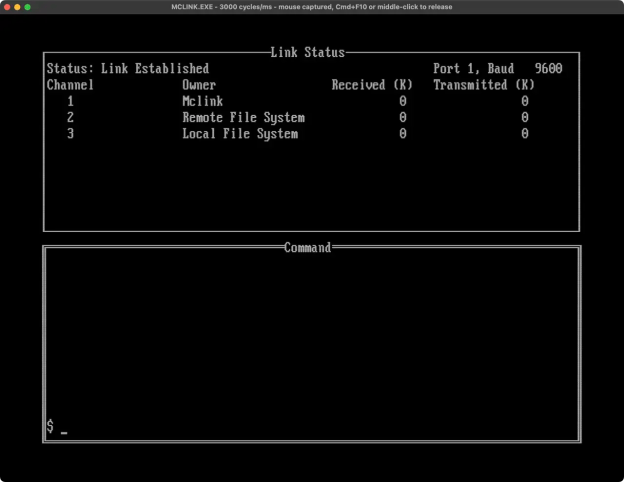
DOSBox Staging is a neat x86 emulator that boots to MS-DOS. This makes it perfect for running Psion’s mid-1990s utilities. Specifically, I have Psion’s MCLINK.EXE tool, which implements the company’s Link protocol on DOS.
I customised my DOSBox Staging config file to bind its serial port handling to my USB-serial adaptor which is plugged into an original Psion 3 Link comms cable.
MCLINK.EXE work well, but it’s quirky—especially if, like me, you’re not a DOS native—and this is why I wanted to try out plptools. This suite of command-line utilities has a long history beginning in the early 2000s as a open source Psion connectivity package for Linux. The value for me is, first, that this also means it can be compiled to run on macOS and, second, that it uses Unix-like commands for interacting with my ‘remote’ Series 3a rather than DOS ones.
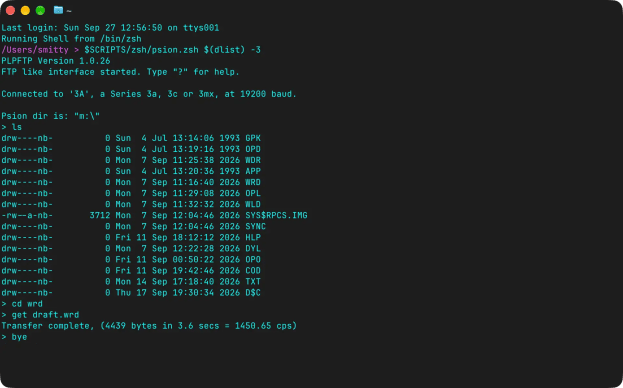
plptools has (have?) multiple components. The foundation is ncpd, a server that establishes the connection between host and Psion. It can run on a per-use basis or as a daemon in the background. I then use plpftp to navigate the Psion directory hierarchy and copy files back and forth (the get and put commands).
Additional plptools utilities include plpprintd, a daemon for printing, and sisinstall, which you use to install .sis app archives to Psion Series 5/Epoc 32 devices.
Lastly, plpfuse permits the mounting of the remote filesystem. I haven’t yet tried this: copying a few files at a time is sufficient for my needs.
I’m happy working at the command line, but I have to give a shout out to Reconnect, a full GUI Psion comms app that sits on top of plptools and is much more friendly and also taps directly into the Psion community software archive to simplify the process of finding, downloading and installing apps.
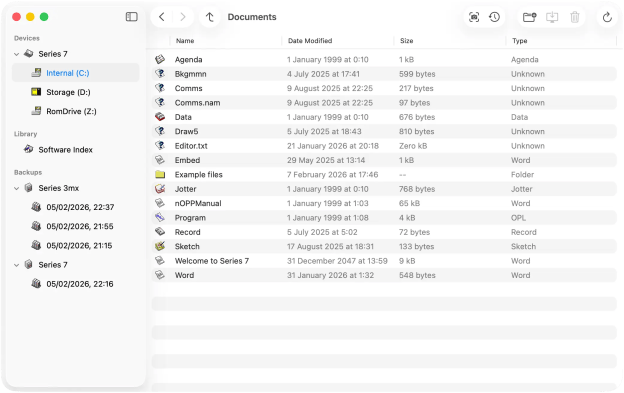
Reconnect is Mac only, so Linux users will need to go straight to plptools, but it looks great. I’ve had better success using it with my Psion 5mx than my 3a, but it definitely presents a more polished experience than plptools on the command line, and certainly MCLINK.EXE under DOS emulation.
You can streamline launching ncpd and plpftp with a shell script—you can find the one I use in my GitHub repo. To run ncps, you need to provide it with the connection speed and the path to your serial adaptor’s device file. The script selects the top speed according to device type, specified with the -3 or -5 flag.
I call the script with my dlist utility to get the adaptor path:
psion.zsh $(dlist) -3Incidentally, building plptools on macOS is not totally straightforward, requiring some additional arguments and environment variables to be set, so I have a script for that too. Thanks to Reconnect, plptools is getting updates again, so I expect to recompile it over time, which I new do using:
plpbuild.zshplptools’ build script doesn’t generate plpfuse unless the necessary cross-filesystem tools are already installed: libfuse on Linux and MacFuse on macOS. Use Homebrew to install the latter. However, plpfuse will always be built if build script detects the presence of libfuse or MacFuse. It is not offered as a build option.
I had previously installed MacFuse but removed it and then ran into compilation failures. It turns out it’s necessary to make sure MacFuse is thoroughly uninstalled if you want to build plptools without plpfuse. To be completely sure it has gone, include the --force and --zap flags when you run brew uninstall macfuse. If you’ve never installed MacFuse you should be OK.
I’m not sure why you’d want to install it for plptools use. To be honest, if it’s a high level of filesystem integration that you want on macOS, you’re much better off bypassing plptools altogether and going straight to Reconnect. But if you do want to use plpfuse, install MacFuse& then run my build script with the -m or --macfuse flag, and it’ll set up compilation accordingly.

