
Recent work connecting old mobile devices — the Psion Series 3a and the Amstrad NC100 — to my Mac caused me to run into an issue with the script I use to determine the Unix device path of the USB-to-serial adaptor I use to talk to these gadgets. Long story short: I ended up converting a Z Shell function into a Swift CLI tool — and adding Linux support into the bargain.
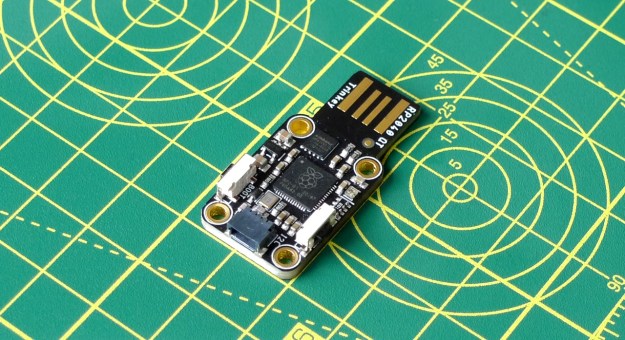
To state the problem: connecting a USB-to-serial adaptor on macOS results in the device gaining a non-deterministic device filename in the /dev/ directory. I have a lot of USB-to-serial adaptors. Not just the cable for connecting the aforementioned Psion and Amstrad, but also every Raspberry Pi RP2040-based microcontroller board I have, and others, do USB to serial conversion. I can have several of these connected at any one time.
Rather than getting a directory listing of the /dev/ directory, copying the path of the correct device — assuming the correct device is recognisable — and pasting it into, say. the command used to copy a MicroPython code file to a connected Raspberry Pi Pico, I wrote a shell function to figure out the correct device path from all those currently on the system and enter it for me.
macOS gives adaptors a filename prefix cu.. The trouble is, a number of other, system-owned items have that prefix too, so the function needs to weed out those and present what’s left.
What if more than one device is available? The user has to choose one, and so the script presents them as a list. Then you can pass the index of the specific adaptor you want to use as an argument to the function to get that device’s path output to STDOUT for including in another call, as mentioned above.
For example, to connect to my NC100, I just do
minicom -d $(dlist) -b 9600dlist is the name of the function.
All well and good, but the Psion and Amstrad work introduced me to a new brand of USB-to-serial chip of which dlist was not aware. All those I’ve seen to date have device filenames that begin with cu.usbmodem, but the new cable is prefixed cu.PL2303. And I’ve encountered cu.FTDI too.
Seeing this might happen again, with another new cable of MCU board, rather than update the shell function, I decided to rewrite it in Swift as a CLI command.

The code is inevitably more extensive. Apart from having to add the CLI app foundation code which essentially comes for free with a function embedded in a .zshrc file, there’s more code required for error paths that I didn’t include in my personal-use script but which I’d want to add into a version made available for public consumption. I’d also want to add help text.
Separating the code out into a greater number of component functions also helps pave the way for some proper unit testing.
But dlist is now not just a macOS tool. Migrating to Swift presented an opportunity to extend the code to support Linux. I also connect MCU boards to my Raspberry Pi 500, and it would be useful to have the same device discovery functionality there too.

Linux is different from macOS in this regard. Connected USB-to-serial adaptors appear as either /dev/ttyUSBx or /dev/ttyACMx. But which one in a given situation? macOS only adds the cu.xxx device filenames when the devices connect, but Linux keeps, say, ttyUSB0 around no matter what.
Now, you might call dmesg and look for attachment events in the log, but that requires some processing to check that an attached ttyUSB0 wasn’t later disconnected. And connected again. And disconnected again. And so on…
But here’s a better way. Linux populates the paths under /sys/class/tty/ as devices are connected. So just as, on macOS, you can get the contents of /dev/ and prune all those without the cu. prefix, so you can get the contents of /sys/class/tty/ on Linux and prune all those entries not prefixed ttyUSB or ttyACM. If the resulting list is empty, you have no such devices connected. If the list isn’t empty, you have one or more USB-to-serial adaptors attached and can list it (under /dev/) or them.
I say Linux, but TBH I mean Debian-derived distros. Others have not been tested, and may do things differently.
Anyway, that’s what dlist now does, so I can, for example, make the same minicom calls listed above on my Raspberry Pi (or other Linux machines) as I do on macOS. This includes the one to which I’ve just connected to pipe this post across from my NC100!
You can find the new version of dlist in its GitHub repo.
 smittytone messes with micros