
With time on my hands and having noted that rather a lot of iOS and macOS engineering jobs now emphasise SwiftUI skills, I thought it was high time that this old AppKit hand spent some time learning how to implement Swift’s ‘new’ declarative UI construction framework.

You might very well wonder why it has taken me so long. SwiftUI has been around for five and a half years – it debuted at Apple’s Worldwide Developers’ Conference in 2019. Why have I not tackled it before?
Truth is, I had a look very early on, and while I could see clear benefits for iOS apps, which generally present UIs built around single window viewed exclusively, I wasn’t convinced that SwiftUI could be used to build complex macOS application UIs like this.

More to the point, it was always easier to fall back on the AppKit ‘muscle memory’ that I’ve built up over 20-odd years of macOS app development.
I’m still not totally won over to SwiftUI, and rewriting an existing app to learn how to use it has proved continually frustrating as each new iteration has been almost, but not quite, a match for the original, often without any clear means to bridge the gap.
Step One: Find a Real Project
I had a need to update an old, but oft-used app I wrote for designing 8×8 images for use with matrix LEDs in microcontroller projects. The app, ASCII, was written in Objective C, and wasn’t rendering correctly after being recompiled under macOS 15 and the latest Xcode. It’s not a complex app from a functionality standpoint, but it has a busy UI. Rather than try and figure out the cause of the issue, it struck me this was an ideal opportunity to rewrite the whole thing in Swift and Swift UI, learning the SwiftUI way as I went.
Learning a new language or framework is always more effective when you use a real project rather than fiddle around with example code because of all the real-world edge and unique cases that come up as challenges. In short, there are many, many more ‘how the heck do I do this?’ questions to be asked, and they’re real not hypothetical.
ASCII is a single-window app that allows the user to draw and manipulate an 8×8 image and output it as hex data that can be copied into a program designed to run on a microcontroller from where it will be fed via I²C to one or more matrix LEDs. The app’s UI presents a grid for drawing and controls for adjusting the image: horizontal and vertical mirroring, rotation, pixel shifts, inverting colours, that sort of thing. It doesn’t really need to persist data or record user preferences, so I don’t need all the standard menu commands. The window has a fixed size.

The obvious starting point is the UI, so that’s what I did. SwiftUI defines an App struct (in Swift, a class that’s passed around as a value not as a reference) to provide a Scene: a container for the app’s collection of Windows, each of which is composed by a nested sequence of Views.
A View is simply an element in the UI, usually constructed from sub-Views, the better to minimise the number of Views the runtime needs to update as the underlying data changes, whether that’s real data, or temporary state variables.
While AppKit was all about laying out UIs and connecting UI components to functions and reference-holding variables visually, SwiftUI ditches all that for code. You can build AppKit UIs programmatically too, but I have always found the visual approach better because you can see the effect immediately, and adjust as necessary. SwiftUI says, ‘I’ll do all that for you’. Xcode provides a preview (though SwiftUI’s focus on code means you’re not required to use specific tools) but the layout is generated from your statements. Not just in preview but at runtime.
The View structs you write are templates: the runtime instantiates any whose bound data has changed, produces pixels from those instances, and then bins them leaving only the image in the screen buffer. The emphasis is on providing instructions for the rendering engine. You can provide frame size and specify padding extents if you need to, but SwiftUI’s message is very much ‘leave this to me’.
SwiftUI View structs aren’t purely visual. They incorporate interaction logic too. The compiler connects these components to the host OS’ event routing mechanism.
Working on the UI first is useful because it forces you to consider which on-screen elements need what data, and whether they need access to the underlying data at all. For example, a switch — a Toggle in SwiftUI parlance — might not need to affect the model, just to a state variable that the runtime reads to determine whether to render the switch on or off.
With AppKit you see that data has changed so you tell relevant UI components to update themselves. With Swift UI, you tell the equivalent components what data to watch, and they observe that data and update themselves when it changes.
Speaking of Toggles, SwiftUI brings some unnecessary nomenclature changes, and related adjustment: sets of radio buttons are not buttons as they would be in AppKit, but are implemented through the Picker — lists of options you choose from. Update the Picker’s style value and it appears as a set of buttons rather than as a textual list.
When SwiftUI Breaks, Fall Back to… AppKit!
Similarly, menu commands are not menu items but Buttons styled by the runtime according to their context. iOS apps don’t have menu bars, though it does support popup menus now, and so SwiftUI’s macOS menuing mechanism feels botched up from iOS components. And in its attempt to do as much for you as possible, SwiftUI makes it difficult to take full control of the menu bar layout as AppKit’s visual controls allow you to do. There it’s easy to add new items and remove all or parts of the standard menus — File, Edit View, Window and so on — and bind them to the code implementing the functionality they manage. SwiftUI has no such flexibility and, worse, references key menu components by new, unfamiliar names. The traditional About… menu command, for example, is referenced as .appInfo, for example.
ASCII does not require the standard File menu, but it’s not possible to remove it and leave the others using SwiftUI. No, to do so, you need to fall back on AppKit and its application delegate concept: a controller object that receives and processes app lifecycle events. These include launch, and this provides a hook for you to modify the loaded UI before it’s presented to the user. Here I can use AppKit code to access the SwiftUI rendered menu bar and pull the File menu from it.

See what I mean about learning with real code? That’s a feature is very unlikely to appear in a simple sample app.
To make matters worse, SwiftUI was introduced — as so many new features are to modern development — as a work in progress, and it’s gone through quite a few changes in its five-and-a-half year history. I recently attended an Apple-hosted two-day event held to bring better understanding of SwiftUI to AppKit holdouts, and I got a great picture of the framework as it is now. But that’s not how it was even a year ago, so Googling for answers yielded many that no longer apply or, more commonly, are almost but not quite what you do now. Like Swift, SwiftUI moves at speed and just when you think you’ve got it pinned down, it darts someplace else.
Apple also showed how to embed AppKit elements into SwiftUI structures, and vice versa. That was to help folk migrating to the platform who can’t do what I did and start afresh. But beyond that, AppKit’s application delegation model gives you much greater control over the behaviour of an app over time than SwiftUI does. Maybe that will change as SwiftUI evolves, but it’s going to be a while before macOS app developers can embrace SwiftUI totally and leave AppKit behind. I can see in the many questions posted on StackOverflow and sites like it that this is what many of them want to do, but AppKit hacks still yield most of the answers.
A case in point. A single-window SwiftUI app will automatically quit when that window closes. With AppKit, the behaviour has to be applied yourself by responding to one of the calls the runtime makes to your application delegate, to which you just return true. Add a second, occasional-use window to your SwiftUI app and that built-in behaviour changes completely. It can’t know that the custom About… window I’ve added is not part of the core UI, but it makes that assumption and so closing the main app window no longer causes the app to quit. To fix it, you need to provide a good old AppKit application delegate callback!
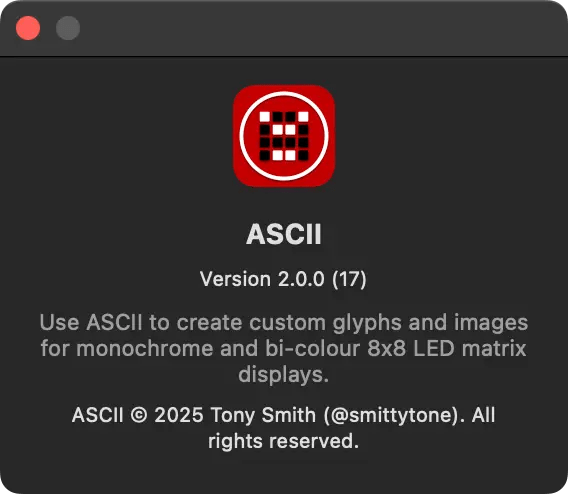
Removing the ASCII’s main window maximise button (the window is of a fixed size; there’s no content that could benefit from full-screen interface) likewise requires SwiftUI/AppKit hybridisation, and even though the event-driven code is attached to the main window’s View, it still gets called for the About ASCII window, so I have to code for both. This is odd given SwiftUI’s emphasis on breaking the UI down as a far as possible to trigger re-rendering as infrequently as possible.
Though adopting SwiftUI for a non-standard UI has been incredibly frustrating — much more so than I remember adopting AppKit layout constraints was back in the day — I can see the benefits. It certainly forces you to compartmentalise your app, mentally as well as practically, in a way that AppKit doesn’t — it relied on you having an app architectural framework in mind at the outset. SwiftUI steers you along a path to the right thing for re-usability and, more importantly, better maintainability. I can see that even in a relatively simple app like ASCII.
SwiftUI is essentially a UI abstraction layer. It currently sits on top of AppKit, but it could rest above any other OS’ UI framework. GtK or Qt, perhaps. So it certainly has the potential to help Swift cross-platform app development extend beyond its current CLI niche. Most of the CLI tools that I write in Swift can be compiled under Linux and run on a Raspberry Pi as well as a Mac. It would be nice to be able to do the same for GUI apps.
CLI tool compilation uses Swift tools separate from the Mac-only Xcode. So would GUI apps based totally on SwiftUI — hypothetically at least: we have to wait for connections to be made to the relevant platform-specific GUI libraries. For that reason, and despite the frustrations, I think I’ll be sticking with it for new desktop GUI-based projects.
You can download ASCII from my website. The code is on GitHub.
 smittytone messes with micros