
Recap I have acquired a UK-made Psion Series 3a palmtop. I’ve connected it to my Mac. My next goal is to connect the 3a to the Internet for email. But first… yes, I got distracted: having connected the 3a to a Mac, what about a Raspberry Pi? Could I do more with it than transfer files?
Darn right, I can. I can use it to control my headless server.
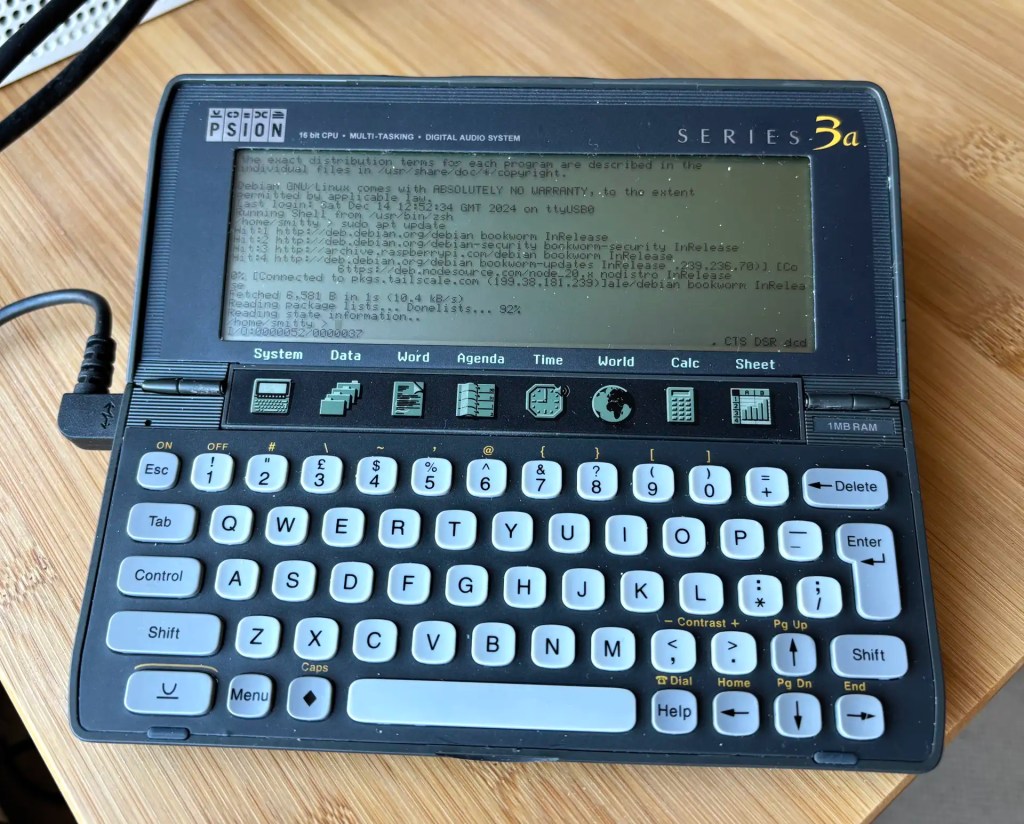
I wanted to try this because a former colleague mentioned carrying a Psion around in the early 2000s as a portable serial terminal. Surely it can still be done with a Linux box.
Here’s what I did, based on a Raspberry Pi Forum post from way back in the Pi 3 days, plus some experimentation of my own.
Access the Pi by any usual method and use the command line to issue the following commands:
sudo mv /lib/systemd/system/serial-getty@.service /etc/systemd/system/serial-getty@ttyUSB0.service
sudo nano /etc/systemd/system/serial-getty@ttyUSB0.service
In the opened file, scroll down to the [Service] section and look for the line commencing ExecStart=. Remove the part -o '-p -- \\u' — I found it was causing login issues — and change the value after --keep-baud to 9600.
Now enable the new service:
sudo systemctl enable serial-getty@ttyUSB0.service
sudo systemctl start  serial-getty@ttyUSB0.service
Now tweak the arguments the boot system passes to the Linux kernel:
sudo nano /boot/firmware/cmdline.txt
At the start, you’ll probably see console=tty1 — this is the command that causes all those startup messages to appear on the screen if you have the Pi OS splash screen disabled. Depending on your configuration, you may see a second console= — this one is for access via serial. I changed mine console=ttyUSB0,9600.
Why ttyUSB0 in all of the above? It’s what my Prolific P2303-based USB-serial adaptor — the one I connect my 3a’s RS232 adaptor to — appears as under /dev when connected.
Finally, reboot.
sudo reboot
That’s the Pi done. For the 3a, I’d already read about using the program nfsc for terminal emulation because it supports VT100 when connecting to other devices serially, so I downloaded it, copied over to the 3a via my Mac (for details see the last post) and configured it by hitting Psion-P. This calls up the serial parameters — set the speed to 9600, the serial bus to 8, 1, none, and the flow control to none.

Now you can plug the the 3a into the Pi and go. You should see the login prompt. If not just type your Pi username and then the password prompt will appear.
The only snag: if I unplug the USB connector (or it’s not connected at boot), the systemd service managing ttyUSB0. You would expect that: the device is gone, so the resources dedicated to the service can be freed. But it doesn’t restart when the USB adaptor is plugged back in.
After consulting the systemd manual, I found I can (sort of) fix this with a secondary service. First run:
sudo nano /etc/udev/rules.d/90-usb-serial-login.rules
Add this to it, all on a single line:
ACTION=="add", SUBSYSTEM=="tty", ENV{ID_BUS}=="usb", TAG+="systemd", ENV{SYSTEMD_WANTS}="usb-serial-login.service"
Now run:
sudo nano /etc/systemd/system/usb-serial-login.service
And add to it:
[Service]
Type=oneshot
ExecStart=/usr/bin/systemctl restart serial-getty@ttyUSB0
Now restart your Pi. If the USB adaptor isn’t connected, the getty service doesn’t start, but if and when you plug in the adaptor, systemd works to start it the service.

It’s only a partial solution: if you subsequently disconnect the adaptor and later reconnect it, the getty service remains in the inactive state. What’s needed is a solution that enables true hot plugging. Any ideas, anyone?
And in any case, hooking a Psion 3 and its elaborate serial adaptor and RS232-to-USB add-on is not the most practical of lash-ups. But it works. And I was even able to log directly into my new Pi 500 over serial and from there ssh into my homelab server — all from the Psion Series 3a screen and keyboard! Not something you’d want to do all the time, but certainly possible.

Next time Back to getting the 3a online
 smittytone messes with micros