smittytone messes with micros

BULLETINS FROM THE TECHNOLOGY FRONT LINE — AND OCCASIONALLY BEHIND IT

Skip to content
  • Home
    • About this Blog…
  • Mac
    • How To (Mac)
    • Programming
  • Raspberry Pi
    • How To (Pi)
    • Hacks
    • Raspberry Pi Knowledgebase
  • Pico
  • Retro

How to remove a Pi’s login message

I access my Pi remotely using SSH. While trying out the zsh shell as an alternative to bash, I wondered if I could get rid of all the bumf that’s displayed as soon as I’ve logged in. I want to see the command line prompt and not much else. A little research led me to the following.
9B34334A-4BEA-4006-A27A-B318756D9111
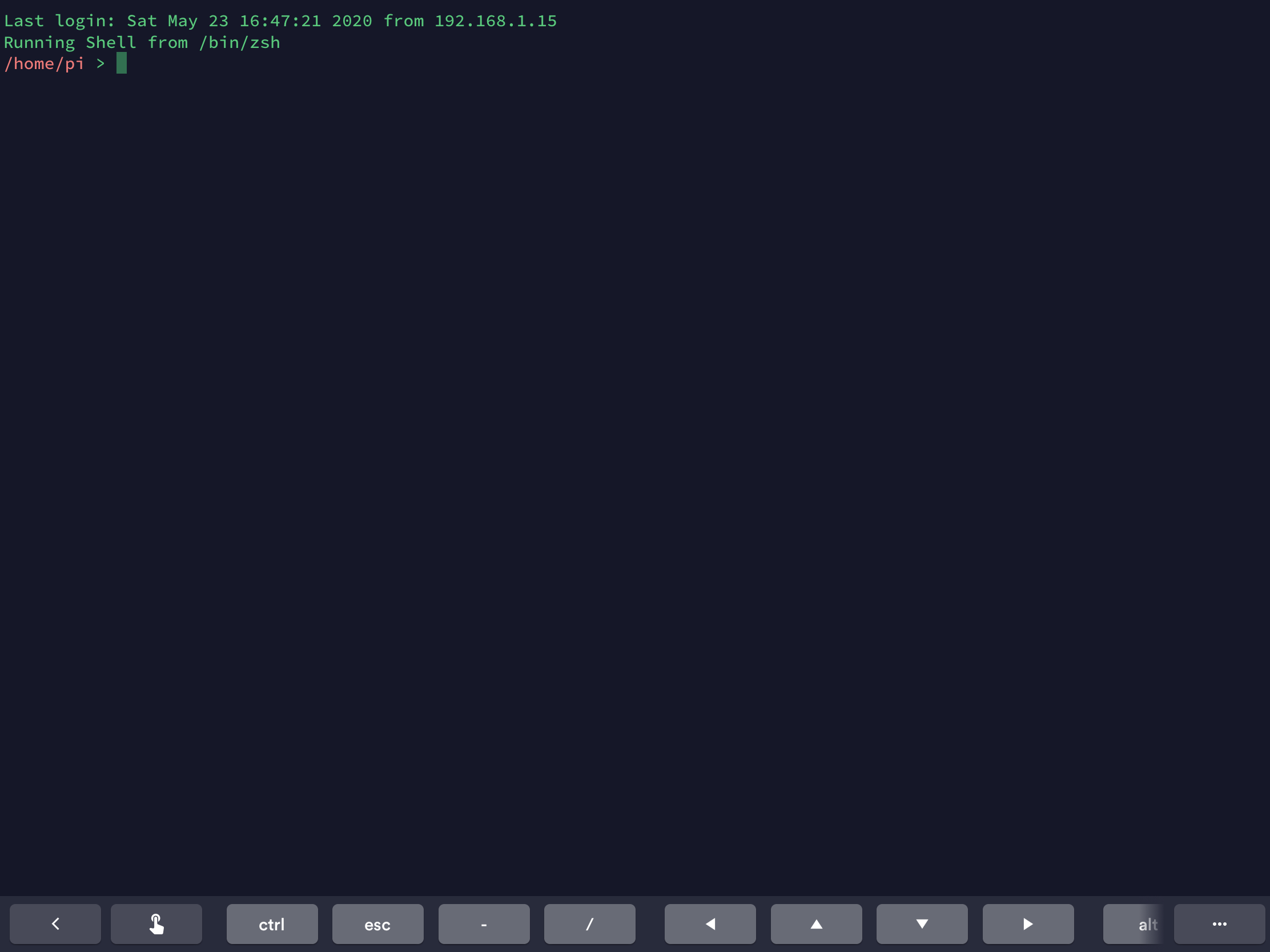
Logging in using Termius. The second line comes from my .zshrc file

The text you see when you log into a Raspberry Pi remotely is generated by from a combination of static files and scripts.

The first line provides Linux information; it’s the output of the uname command, which in this case is called by the script /etc/update-motd.d/10-uname.

The Debian copyright and warranty text is static. You’ll find it in the file /etc/motd.

Edit each of these files, using sudo, and save them when you’re done. For the script, just comment out the line uname -snrvm — just prefix the line with #. For the static file, just delete the contents, or replace it with a message of your own.

Finally, the Last Login:... line. I decided to keep this, but you can get rid of it by creating the file .hushlogin in your home directory: cd $HOME && touch .hushlogin.

Now log out (exit) and when you log back in, you’ll just go straight to the prompt.

Note This all works in Raspbian Buster; older Pi operating systems might do it differently.

Rate this:

Share this:

  • Click to share on X (Opens in new window) X
  • Click to share on Reddit (Opens in new window) Reddit
  • Click to share on Tumblr (Opens in new window) Tumblr
  • Click to share on Pinterest (Opens in new window) Pinterest
  • Click to share on LinkedIn (Opens in new window) LinkedIn
  • Click to email a link to a friend (Opens in new window) Email
  • Click to share on Facebook (Opens in new window) Facebook
  • Click to share on WhatsApp (Opens in new window) WhatsApp
Like Loading...

Related

This entry was posted in How To (Pi), Raspberry Pi and tagged command line, login, Pi, SSH on May 23, 2020 by smittytone.

Post navigation

← Want 50 great fonts for your iPad? Get my new free app Using the Z shell on the Mac and Pi →

🦉No AI content

Follow smittytone messes with micros on WordPress.com

Enjoyed using this site? Tip me!

Tip QR Code
smittytone’s retro tech t-shirts

Latest Items

  • Retro LCD screen illumination: no backlight? Try a frontlight October 27, 2025
  • Amazing analogue: vernier callipers October 22, 2025
  • The most essential Amstrad NC100 accessory? It’s got to be a memory card October 1, 2025
  • How to fix Amstrad NC100 coin cell voltage warnings… with paper September 30, 2025
  • How to bring Amstrad NC100 screenshots to modern graphics apps September 30, 2025
  • PreviewCode 2 brings a new UI and source code line numbers September 2, 2025

My Sites

  • smittytone’s software stack
  • GitHub
  • LinkedIn
  • Merch

Site Topics

  • apps
  • Hacks
  • How To (Mac)
  • How To (Pi)
  • IoT
  • Mac
  • Mobile
  • Programming
  • Raspberry Pi
  • Retro
  • Reviews
  • Sidelines
  • Vintage Computing
  • Webwork
  • Wireless
Follow smittytone messes with micros on WordPress.com

Website Powered by WordPress.com.
  • Subscribe Subscribed
    • smittytone messes with micros
    • Join 96 other subscribers
    • Already have a WordPress.com account? Log in now.
    • smittytone messes with micros
    • Subscribe Subscribed
    • Sign up
    • Log in
    • Copy shortlink
    • Report this content
    • View post in Reader
    • Manage subscriptions
    • Collapse this bar
 

Loading Comments...
 

    %d