
I wrote Make a Mac ‘Task Done’ NeoPixel notification light just over four years ago. Not long after the post was penned, macOS’ security provisions became tighter and so the unsigned third-party kernel extensions used to drive the NeoPixel were no longer available.
That was that. I marked the post as ‘no longer working’ and put the project aside.

Skip forward four years. While reading a blog post about something else entirely, I spotted a comment referencing a new product for delivering GPIO functionality on a Mac (or other computer) via USB. It uses a Microchip MCP2221 USB interface chip; the Adafruit FT232H Breakout used in my original post was based on an FTDI part. I’d like to continue to using the FT232H because it supports SPI and the MCP2221 doesn’t, and why waste old kit if you don’t need to?
So I did a bit of digging and discovered that the FT232H isn’t quite as dead and unsupported as it was a year or so ago when I last looked.
Adafruit has added some instructions for driving the FT232H using Python, specifically its own MicroPython derivative, CircuitPython. Adafruit is putting a lot of effort into CircuitPython-compatible device driver libraries, which makes my NeoPixel notifier code more compact, streamlines the installation process and — best of all — removes the need for macOS kernel extensions.
So here is the new setup sequence. Run each step at the command line.
brew install libusbpip3 install pyftdi adafruit-blinka adafruit-circuitpython-neopixel-spiecho 'export BLINKA_FT232H=1' >> ~/.bash_profileecho '0.0.0.0' > "$HOME/.status"
Note The above instructions assume you’re on a Mac; you’ll probably use apt rather than brew on another Unix-based machine, and you might not have a .bash_profile file. For other folks, here are Windows instructions.
This is how you wire up the FT232H and the NeoPixel:
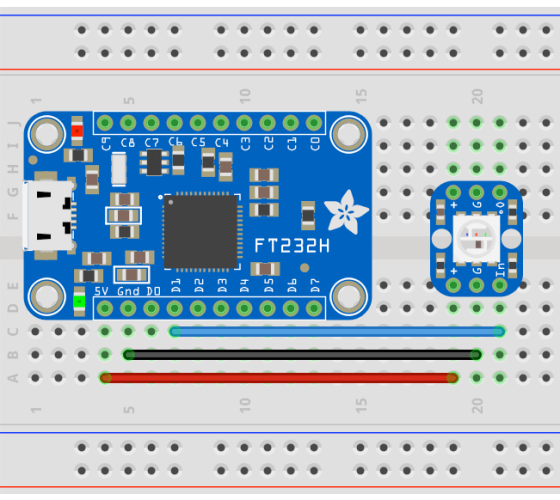
I’ve taken the opportunity to not only rewrite my notification driver code to support Adafruit’s new tools, but also to improve how it operates: it’ll do three parallel notification colours now. The code is below, but you can also find it on my GitHub repo, which also contains a bash script you can use to control the notification light in your own scripts.
Here’s the driver code:
#!/usr/bin/env python

"""
TaskLight - a notification light controller
Requires Adafruit's FT232H Breakout
(https://www.adafruit.com/product/2264)
and a single NeoPixel.
"""

# IMPORTS
import time
import sys
import os
import board
import neopixel_spi as neopixel

# CONSTANTS
FLASH_DELAY = 0.3
MAX_COLOURS = 3

# FUNCTIONS
def clear(ps):
    # Turn the NeoPixel off
    ps[0] = (0, 0, 0)
    ps.show()

def cycle(c):
    # Increment c and cycle to 0 if necessary
    c += 1
    if c >= MAX_COLOURS: c = 0
    return c

# START
if __name__ == '__main__':

    # Set up the NeoPixel array, as per the library and clear it
    # NOTE There's only one NeoPixel
    pixels = neopixel.NeoPixel_SPI(board.SPI(),
                                   1,
                                   pixel_order = neopixel.GRB,
                                   auto_write = False)
    clear(pixels)

    # Initialize key variables
    filename = os.path.expanduser("~") + '/.status'
    brightness = 30 # Brightness control as a percentage
    notification = [False, False, False]
    colour = [0, 0, 0]
    count = 0
    flashState = True

    # Run the loop
    while True:
        try:
            # Set the colours of each component in the NeoPixel
            # This will alternate between 2 and 3 colours, and
            # alternate one colour with black (off)
            numberOfAlerts = 0
            for i in range(0, MAX_COLOURS):
                colour[i] = 0
                if notification[i] is True:
                     numberOfAlerts += 1
                     if i == count and flashState is True:
                        colour[i] = 255

            if numberOfAlerts == 1:
                flashState = not flashState
                count = notification.index(True)
            elif numberOfAlerts > 1:
                if not flashState: flashState = True
                while True:
                    count = cycle(count)
                    if notification[count] is True: break

            # Draw and display the Neopixel (first and only item in 'pixels' array)
            pixels[0] = (int(colour[0] * brightness / 100), int(colour[1] * brightness / 100), int(colour[2] * brightness / 100))
            pixels.show()

            # Check the status file
            if os.path.exists(filename):
                file = open(filename)
                text = file.read()
                file.close()
                # File contains four values, eg. 0.0.0.0
                # First is a marker for the red light (1 = on; 0 = off), etc.
                # Fourth is a 'stop script' marker for debugging
                items = text.split('.')
                if len(items) > MAX_COLOURS:
                    if items[MAX_COLOURS] == '1':
                        # Halt called, so switch off the LED and bail
                        clear(pixels)
                        sys.exit(0)

                # Check each item -- can do better error checking here!
                for i in range(0, MAX_COLOURS):
                    if items[i] != '0':
                        # Status file indicates notification light should be on
                        # NOTE Any value other that '0' will work
                        if notification[i] is False:
                            notification[i] = True
                    else:
                        # Turn of the light if it's currently on
                        if notification[i] is True:
                            notification[i] = False
            else:
                # No status file - warn the user
                print('[ERROR] No .status file')
                sys.exit(1)

            time.sleep(FLASH_DELAY)
        except KeyboardInterrupt:
            clear(pixels)
sys.exit(-1)
To run the code save it as, say, task.py and then run it in the background using
python task.py &
Here’s the controller script:
#!/usr/bin/env bash

# Manage a TaskLight .status file
# Version 1.0.0

# Function to show help info - keeps this out of the code
function showHelp {
    echo -e "\ntask 1.0.0\n"
    echo -e "Manage a TaskLight .status file\n"
    echo -e "Usage:\n    task.sh [-r value] [-g value] [-b value]\n"
    echo    "Options:"
    echo    "    -r / --red   [value]  Set the red pixel on (1) or off (0)."
    echo    "    -g / --green [value]  Set the green pixel on (1) or off (0)."
    echo    "    -b / --blue  [value]  Set the blue pixel on (1) or off (0)."
    echo    "    -o / --off            Turn all the pixels off (eg. clear notifications)."
    echo    "    -h / --help           This help screen."
    echo
}

# Initialize variables
argCount=0
argIsAValue=0
red=0
blue=0
green=0
dostop=0
statusfile="$HOME/.status"
# Get the current values
if [ -e "$statusfile" ]; then
    line=$(head -n 1 "$statusfile")
    IFS='.' read -r -a parts <<< "$line"
    red=${parts[0]}
    green=${parts[1]}
    blue=${parts[2]}
fi

# Parse the command line arguments
for arg in "$@"; do
    if [[ "$argIsAValue" -gt 0 ]]; then
        # The argument should be a value (previous argument was an option)
        if [[ ${arg:0:1} = "-" ]]; then
            # Next value is an option: ie. missing value
            echo "Error: Missing value for ${args[((argIsAValue - 1))]}"
            exit 1
        fi

        # Set the appropriate internal value
        case "$argIsAValue" in
            1)  red=$arg ;;
            2)  green=$arg ;;
            3)  blue=$arg ;;
            *)  echo "Error: Unknown argument"; exit 1 ;;
        esac
        argIsAValue=0
    else
        # Make the argument lowercase
        arg=${arg,,}

        if [[ $arg = "-r" || $arg = "--red" ]]; then
            argIsAValue=1
        elif [[ $arg = "-g" || $arg = "--green" ]]; then
            argIsAValue=2
        elif [[ $arg = "-b" || $arg = "--blue" ]]; then
            argIsAValue=3
        elif [[ $arg = "-s" || $arg = "--stop" ]]; then
            dostop=1
        elif [[ $arg = "-h" || $arg = "--help" ]]; then
            showHelp
            exit 0
        elif [[ $arg = "-o" || $arg = "--off" ]]; then
            echo "0.0.0.0." > "$statusfile"
            exit 0
        else
            echo "[ERROR] Unknown switch: $arg"
            exit 1
        fi
    fi

    ((argCount++))

    if [[ "$argCount" -eq $# && "$argIsAValue" -ne 0 ]]; then
        echo "[Error] Missing value for $arg"
        exit 1
    fi
done

# Write out the file
echo "$red.$green.$blue.$dostop." > "$statusfile"
Save it as task.sh and then make it executable with
chmod +x task.sh
You can set the light flashing red and blue by calling
./task.sh --red 1 --blue 1
Turn off blue, by calling
./task.sh --blue 0
Make all the colours flash with
./task.sh --green 1 --blue 1
And turn off the three notifications with
./task.sh -off
It’s pretty easy to control the notification lights from other applications and scripts by making calls like those presented above.
This is just one possible use of the FT232H Breakout, and I’ll be covering some further applications of this great bit of kit in future posts.
 smittytone messes with micros