
PreviewCode provides at-a-glance highlighted source code previews of more than 60 programming and scripting languages, and development configuration file formats. It makes use of macOS’ QuickLook mechanism: select a file and hit the spacebar to get an immediate preview of the file’s contents. It’s a handy way to view a file without opening it in an application.

PreviewCode also generates Finder thumbnail icons for all of those file types if you prefer something other than generic icons.
I have just released PreviewCode 2, which implements a new, streamlined UI and, because many users asked for it, the option to display previews with code line numbers.
The new UI places the host app’s key functionality only a single click away: click on one of the three buttons to the right of the name. The one you’ll use most is Settings: this is where you customise your preview, choosing, for example, the presentation font, weight and size, line spacing, and which theme or themes (if you want themes to match macOS’ presentation mode, dark or light, if switched automatically).

And it’s here, as I mentioned earlier, that you can opt to include line numbers in previews:

Around 50 themes are included, a mix of dark and light. You can choose to have previews displayed in either mode, irrespective of your Mac’s current one. For instance, if your Mac is set to dark mode, you can nonetheless choose to have all source code previews presented with a light theme: just click the Light button and select a light theme from the list to the right. Clicking Dark switches to permanent dark-theme previews. Clicking Auto lists all themes, both light and dark: select one of each. Previews will then be presented in whichever theme matches the mode your Mac is set to. This is handy if you’ve set your Mac to automatically change mode according to the current time.
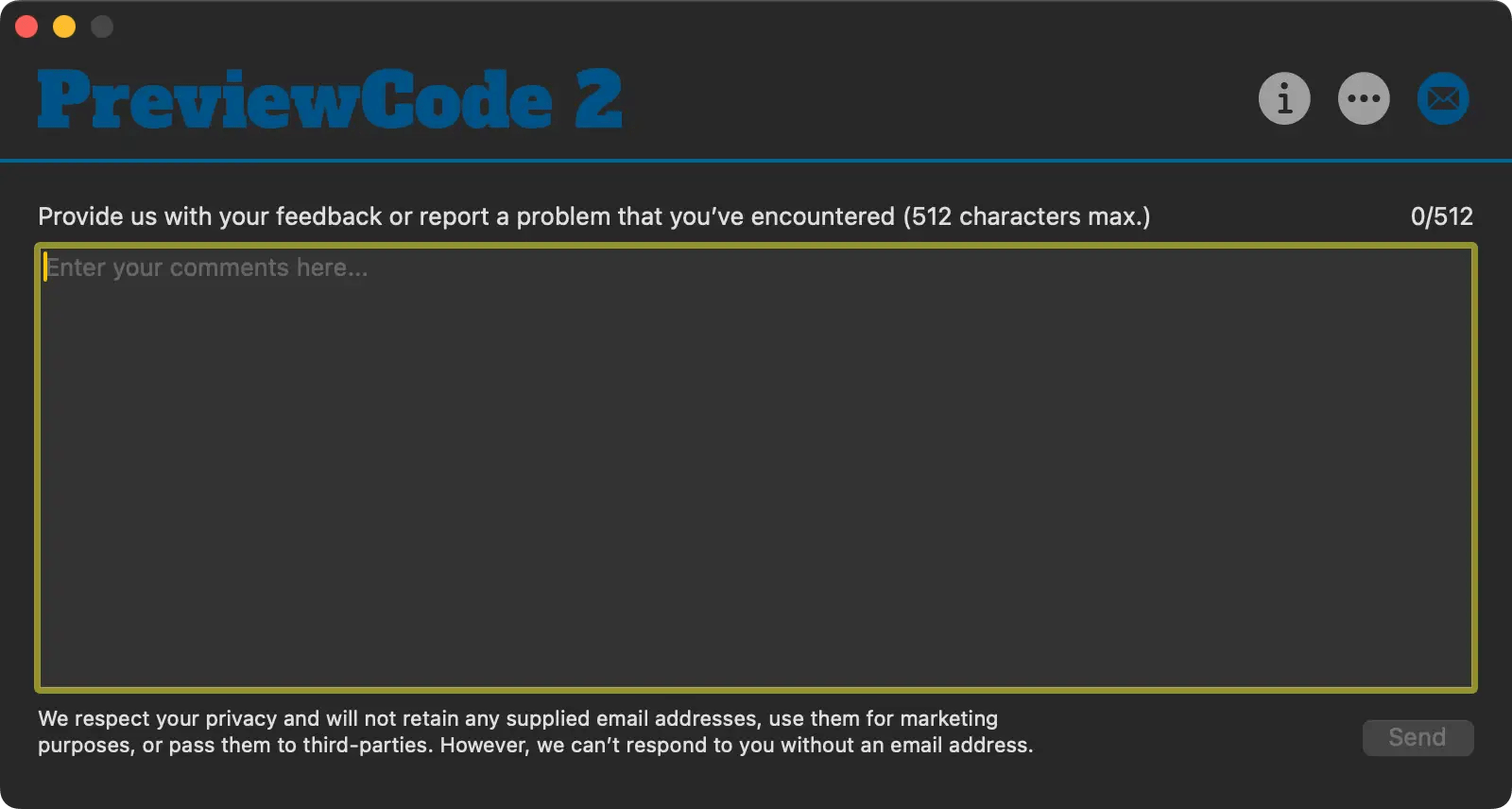
The third main UI button presents a way of submitting feedback, or to report bugs.
PreviewCode 2 is available now from the macOS App Store, and you can inspect the source code over on GitHub. Guidance on its usage can be found on my website.
 smittytone messes with micros